
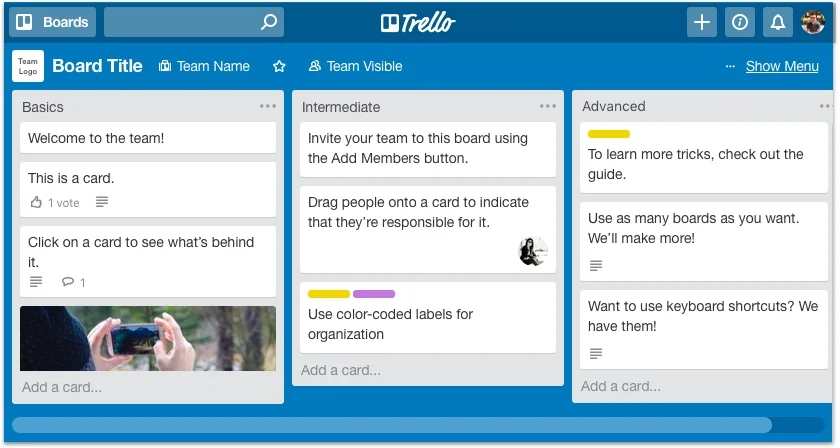
How to Master Your Trello Boards
Trello is a project management app, an easy and flexible tool to visually organise and manage your projects.
Trello’s strength is the flexibility, that allows it to be used by a wide range of people, from teams to individuals. Trello is your best working companion whether you are a student, a professional, a stay-at-home mum, or simply someone who looks for a way to keep track of her hobbies.
For more details check out the official Getting Started with Trello page.
How to use Trello?
The core elements of Trello are boards, lists, and cards. The board is like the blank canvas where you start, then you can create lists within each board and then cards, which are single tasks inside a list. The design of Trello was initially inspired by the Kanban method, a Japanese scheduling system introduced by an industrial engineer at Toyota to improve manufacturing efficiency.
Essentially it’s based on a simple flow that moves tasks from three core lists: To Do, Doing, and Done. But Trello can be so much more, thanks to its great features like labels, checklists, comments, due dates and Power-Ups.
Trello: Board Examples
These three examples of how I personally master my Trello boards in my day-to-day life.
Work (Editorial Calendar)
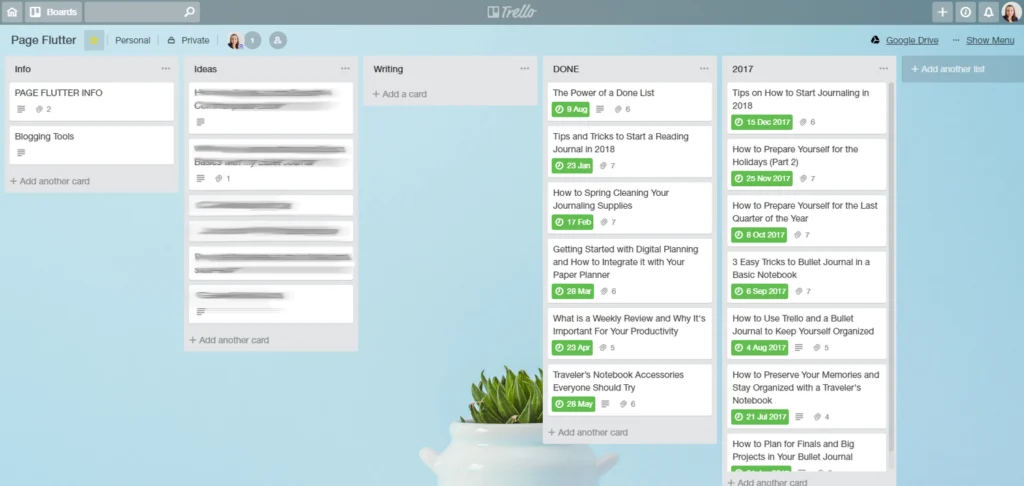
Here is a very simple board that I use very frequently to manage my freelance work as a blogger contributor. The first list is just a placeholder with all the information I need, like logins, links, image sizes, post guidelines, etc. (Please, keep in mind that I do not store my passwords inside Trello). Then I have a list of Ideas and this is where I collect all the blog post ideas that come to my mind. Once the topic has been chosen and approved, I move the card to the Writing list and, finally, to the DONE one. The very last list is just an archive of the articles written last year, I’ll probably do the same at the end of 2018.
Since I have a free plan, I can only have one Power-Up enabled, so I’ve chosen Google Drive because it allows me to easily attach documents or directly create new ones directly from the cards (great for drafting blog posts!). And speaking of Power-Ups, another way to master your Trello board could be using the Calendar one, so it would be even easier to create an editorial calendar.
Hobby (Book Journal)
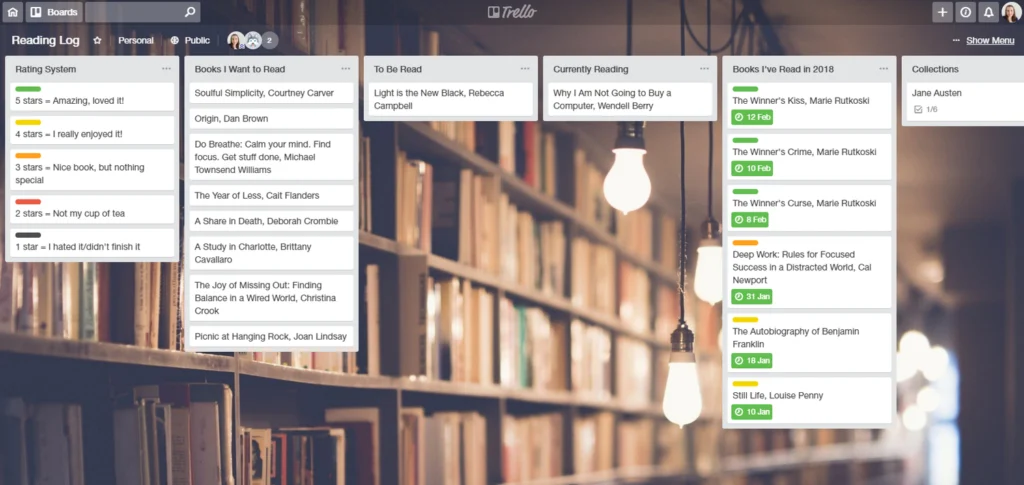
This board is probably my absolute favourite one so far because I love reading and being able to record book recommendations, thoughts, or just update my “currently reading” status on the go is a bookworm’s dream! The list titles are pretty self-explanatory, however, instead of a Power-Up, I used labels this time.
I’m not very good at rating books or writing long-form reviews, so I decided to come up with a simple rating system and that was possible thanks to Trello’s flexibility. To not forget the meaning of each colour, I’ve created a key in the very first list of the board.
Personal Development (Long-Term planning)
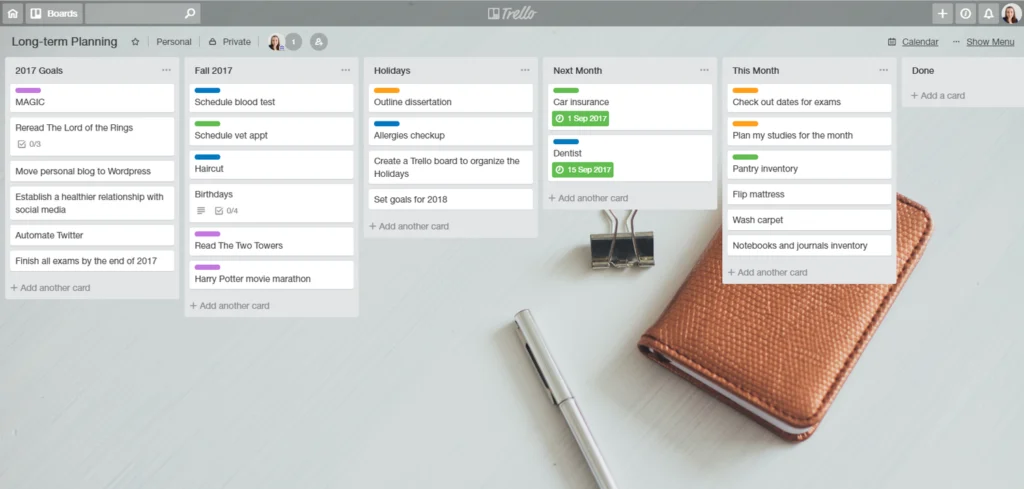
To be honest, I no longer use this board, but I found it very useful last year when I was about to start my last year at University, so I thought it would be a good example to share. I think setting both personal and work goals is very important for our personal development and the easiest way to make them happen is to break them down into smaller actionable tasks.
Trello has been amazing to get a big picture view of my life last year and I highly recommend you a board like this one.